
TeachersFirst's BYOD Dream Tools: Free Tools that Work on ANY device!
This collection of reviewed resources and tools from TeachersFirst includes web tools and apps that are available for FREE on iOS (iPad, iPhone), Android, and web devices. Come here to find tools that your students can use as they do instructional activities in your BYOD or 1-1 classroom. In this collection, you will find tools and resources that include calculators, quiz creators, game makers, curation tools, interactive lessons, Venn-diagram creators, literacy accessibility tools, online time trackers, meme creators, podcast makers, translator tools, task list creators, and many other free tools that will work on any device.
Even the best device-agnostic resources have slight differences in capabilities on different devices. Encourage your students to share what they discover about additional or missing features on each type of device. Your class will quickly appoint experts for each resource or tool. TeachersFirst encourages our members (membership is FREE) to add comments and ratings to help other teachers and students who are trying these tools. Free resources and tools change quickly, so we welcome your comments on any changes that may occur to these tools and their free status.
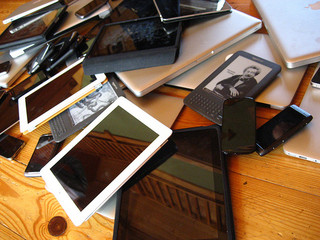
(image credit: Jeremy Keith)
143 Results | sort by:
Edpuzzle - edpuzzle
Grades
K to 12
tag(s): assessment (147), communication (136), DAT device agnostic tool (143), questioning (32), remote learning (61), video (257)
In the Classroom
Create short review videos or use your own narration with chosen videos to create flipped or blended lessons for your students. Is your school embracing remote learning? This is the perfect tool! Consider the power of students using Edpuzzle to annotate videos to explain the material in their own words. You or your students can use the tool to create and narrate "how-to" videos. Annotate by highlighting the significant features of videos through the creation of voice comments. Students can also create questions to play with each video. Be sure students create a script to read from before beginning their chosen video.You must be registered and logged in to add items to your favorites.
Use the form at the top of the page to log in, or click here to join TeachersFirst (it's free!).
Breaking News - NBC News Digital Network
Grades
4 to 12This site includes advertising.
tag(s): DAT device agnostic tool (143), globe (12), maps (209), news (229), newspapers (91), primary sources (115)
In the Classroom
Use this site as a resource for current events projects. Assign students various weeks through out the semester in which they are to be the class news reporter. The reports should keep their peers up to date and informed. Have students research what is going on via this news site, and give a small presentation at the beginning of class every day during their week. Students can do an oral presentation or create a short video summarizing the same information. View several news articles from different areas and discuss bias and point of view from other cities and countries. Choose dots on the map randomly from the various sections to see what is trending in different regions. Have students create news briefs and share them using a tool such as SchoolTube reviewed here.Add your comments below (available only to members) | Become a Member
You must be registered and logged in to add items to your favorites.
Use the form at the top of the page to log in, or click here to join TeachersFirst (it's free!).
MediaFire - MediaFire
Grades
6 to 12This site includes advertising.
tag(s): DAT device agnostic tool (143)
In the Classroom
Use MediaFire to transfer files and images between devices quickly in your BYOD or 1:1 classroom. Student groups working on projects in class can gather and share data easily from anywhere. Use for any work students may wish to collaborate on. They can easily make documents public or private and share with others. What a great way for students to turn their work into you when completed on their devices! During curriculum development and other professional development activities, members of a department (or even school-wide) can share resources and documents easily with each other.Add your comments below (available only to members) | Become a Member
You must be registered and logged in to add items to your favorites.
Use the form at the top of the page to log in, or click here to join TeachersFirst (it's free!).
WeTheEconomy - 20 Short Films You Can't Afford to Miss - Vulcan Productions/Cinelan
Grades
9 to 12tag(s): DAT device agnostic tool (143), financial literacy (92), money (119), supply and demand (4)
In the Classroom
Sign up to download the support materials and plan one or several lessons to demystify the economy as part of a civics/government class or an economics course. Transform the technology use in your class by assigning students to watch films in small groups and create digital booklets explaining the key concepts to the class using a multimedia tool such as Calameo, reviewed here. As economic issues come up in current events or during an election cycle, use these films to explain the underlying issues.Add your comments below (available only to members) | Become a Member
You must be registered and logged in to add items to your favorites.
Use the form at the top of the page to log in, or click here to join TeachersFirst (it's free!).
Kodable - Surfscore, Inc
Grades
K to 4This site includes advertising.
tag(s): coding (88), computational thinking (42), computers (106), DAT device agnostic tool (143), engineering (119), logic (164), problem solving (226), STEM (262)
In the Classroom
Use this tool to learn basic coding skills. Students will quickly catch on to this program when allowed to experiment while viewing their results. Kodable is great for differentiating for students with different abilities and learning styles. Set Kodable up as a learning center and have students work in pairs to complete the challenges.Add your comments below (available only to members) | Become a Member
You must be registered and logged in to add items to your favorites.
Use the form at the top of the page to log in, or click here to join TeachersFirst (it's free!).
Nearpod - Nearpod
Grades
5 to 12When in the "live presentation" mode (in person or remote web conferencing), teachers control the lesson's pace, and students do not move to the next screen until advanced by the teacher. With the "student pace" mode, students progress through independently, whether at home or in class. The third mode is "front of the class;" you project your presentation, and the students do not use their devices. Use the teacher version of the app to push out the presentation to your students. For the first two modes, every student uses their own student app to follow the screens and answer the questions. This provides immediate feedback about every student. The feedback can be emailed to the teacher for later review. This formative assessment tool is invaluable and a unique part of the app. The tool also includes drawing for students to work out problems. Teachers can identify students who are not "on task" and not working within the app when a little red light pops up. Absent students can complete the assignment at home.
The free version of Nearpod for Educators is called Silver; you get 100 MB of storage, 40 students per session/lesson, access to 20+ formative assessments, 7,500 pre-made interactive lessons, 1,000 pre-made interactive videos, 40 students can sign up per lesson, and more. How many lessons and videos will depend on your storage.
tag(s): assessment (147), classroom management (128), DAT device agnostic tool (143), differentiation (84), Formative Assessment (70), gamification (74), Learning Management Systems (22), multimedia (43), Online Learning (40), personalized learning (9), playlists (10), remote learning (61), slides (45), Teacher Utilities (146), teaching strategies (41)
In the Classroom
This is an exciting way to begin iPad (or BYOD), blended learning, or remote learning integration into the classroom. Initially it may be difficult to determine the best pacing of the lesson, the ability to slow down the advancement of the next screen allows more time to digest the information. Be aware that students needing more time may be very frustrated as the screen may advance before they are able to finish. Start small by uploading presentations and using JPEG and other images. Add interactive elements such as polls and videos. Grab students attention by using the first slide to deliver a piece of humorous information. Create guided learning stations and push out several presentations to different devices as students move through the various lessons to be learned. This technique can be helpful for struggling learners. Use this tool to help reinforce the most difficult parts of the lesson. Use the app to create schedules for training, clubs, and more. For English, learn about grammar rules, sentence structure, and other elements necessary for good writing. For ENL/ESL classes and world languages, practice various vocabulary words and learn tenses of verbs. Learn vocabulary and basic scientific concepts in any science class or facts about historical periods in history classes. This app is a valuable tool in any classroom.Add your comments below (available only to members) | Become a Member
You must be registered and logged in to add items to your favorites.
Use the form at the top of the page to log in, or click here to join TeachersFirst (it's free!).
PhotoFunia - Capsule Digital
Grades
K to 12tag(s): collages (20), comics and cartoons (53), DAT device agnostic tool (143), editing (92), images (269), photography (130), posters (47)
In the Classroom
You do not need to be artistic to transform a personal or stock photo into a stunning work of art or even an amusing image. Adjust any image's color intensity, value, and hue using the filters. Use this tool anytime that photos need to be edited for use in class blogs, newsletters, wikis, or websites. In primary grades, this tool could be useful for teachers to use to edit pictures from a field trip, science experiments, and more. Share the editing process with your younger students using your interactive whiteboard or projector. Edit together! Engage older students by encouraging them to use this site themselves on images for projects or presentations. Use the features and effects to edit images to fit styles of photos when doing historical reports or to set the mood.Add your comments below (available only to members) | Become a Member
You must be registered and logged in to add items to your favorites.
Use the form at the top of the page to log in, or click here to join TeachersFirst (it's free!).
Cram - Online Flashcard Library - Cram.com
Grades
4 to 12This site includes advertising.
tag(s): DAT device agnostic tool (143), flash cards (42), test prep (66), vocabulary (235), vocabulary development (90)
In the Classroom
Create flashcards for your classes or have students make their own. Try using them as an introduction to a concept, then again in the practice of the concept, and again as a final review. It is a nice three for one creation deal! This would be great for teaching Latin prefixes and suffixes of words. Use for science terms, or standardized test preparation. Try having students create flashcards and share with each other to quiz themselves within their own groups. Teach students in higher grades how to create flash cards with multiple blanks to challenge their brain to remember more pieces of the puzzle. Show them how to carefully read through classroom notes and underline the most important word or words in a sentence. Then have them leave out the most important words for their flashcards. Learning support teachers might want to have small groups create cards together to review before tests. Have students create flashcard sets to "test" classmates on what they "teach" in oral reports. Be sure to check the data base for already created sets to save you time making them yourself!Add your comments below (available only to members) | Become a Member
You must be registered and logged in to add items to your favorites.
Use the form at the top of the page to log in, or click here to join TeachersFirst (it's free!).
LifeSaver - The Resuscitation Council (UK)
Grades
7 to 12tag(s): DAT device agnostic tool (143), heart (27), medicine (55)
In the Classroom
Use Lifesaver as part of your heart health unit. Allow students to explore the site and participate in simulations while challenging them to increase scores with continued play. Include it as part of a child care unit in FACS. Share with your school nurse or health professional for use with professional training sessions. Share this link on your class website for students to view (and share with families) at home. Download the free app available for all mobile devices for even better use of this site. Moving the app up and down to do CPR demonstrates the technique much better than options on a personal computer. For an extra research challenge, have students compare this UK-based CPR training with U.S. Red Cross or American Heart Association training to see if there are any differences.Add your comments below (available only to members) | Become a Member
You must be registered and logged in to add items to your favorites.
Use the form at the top of the page to log in, or click here to join TeachersFirst (it's free!).
Homeroom - Cluster Labs, Inc.
Grades
K to 12tag(s): DAT device agnostic tool (143), images (269), photography (130)
In the Classroom
Invite parents and students as you create albums of specific events such as field trips, service projects, hands-on activities, field experiences, class speakers, and more. Anywhere photos can be used to showcase achievement, this service would be a great resource. Use for any project, class explanation of concepts, experiments, or demonstrations. Resource teachers, speech teachers, or world language teachers can collect images into "albums" for students to practice/develop speech and vocabulary. In science class when having students do insect collections, instead of having them collect the actual specimens, have them take pictures using their phones or digital cameras. Have the students upload to the album at home, and then they can create a multimedia project with the pictures and statistics of the specimen. Students can snap a picture anywhere, with any device, and upload to the web to use in class or cooperative groups. This tool would be great for clubs and performance groups as well! Do you send a newsletter home to parents? Try creating a heading made from a collage of your latest class activity. Use a program such as Mosaic Maker, reviewed here, to create a collage. Though the content is private, monitor student photos and comments as nothing would be prohibited by Homeroom. You will be notified of all new content.Add your comments below (available only to members) | Become a Member
You must be registered and logged in to add items to your favorites.
Use the form at the top of the page to log in, or click here to join TeachersFirst (it's free!).
Time and Date - Steffen Thorsen
Grades
K to 12This site includes advertising.
tag(s): calculators (37), calendars (40), DAT device agnostic tool (143), moon (70), sun (69), time (92), time zones (7), weather (163)
In the Classroom
Bookmark (or save in your favorites) Time and Date on your classroom computers for students to use throughout the year. Find out the local time and temperature in countries as you study them, count down the number of days until spring break or the end of the school year. Use the stopwatch or timer/alarm for timing class activities. Create a personal classroom calendar. This is a perfect addition to your Calendar Math lessons in elementary school. Share the site on your interactive whiteboard (or projector) as you count how many days you have been in school, daily weather, or a countdown to a special occasion. The possibilities are endless using all of Time and Date's features! Include time/date conversions for online conferences you will hold with parents who are deployed or traveling in different time zones. Share meeting dates/times for Skype sessions using the time conversions so everyone is "on time." Humor your fellow teachers by warning them of the upcoming full moon and its supposed effect on student behavior!Add your comments below (available only to members) | Become a Member
You must be registered and logged in to add items to your favorites.
Use the form at the top of the page to log in, or click here to join TeachersFirst (it's free!).
Legend - Jay Meistrich and Grant Watters
Grades
K to 12tag(s): calendars (40), DAT device agnostic tool (143), organizational skills (90)
In the Classroom
Any student would appreciate having an online time/task management tool they can access anywhere, but learning support students and disorganized gifted students need one. If they are over 13 or have parent permission, this is perfect! You may want to model using this online tool to help middle and high school students learn better personal organization. Share this site on your interactive whiteboard or projector during the first week of school to help students set up their own accounts. Parents may appreciate learning about this site also. Use this site professionally to keep yourself organized! Make a demo account for a mythical student and organize it together so students can see how it works. Teachers in lower grades can use this tool for their own productivity.Add your comments below (available only to members) | Become a Member
You must be registered and logged in to add items to your favorites.
Use the form at the top of the page to log in, or click here to join TeachersFirst (it's free!).
Raindrop.io - Mussabekov Rustem
Grades
K to 12This site includes advertising.
tag(s): bookmarks (47), collaboration (87), curation (35), DAT device agnostic tool (143)
In the Classroom
Use Raindrop.io to create a bank of resources for each content unit within your subject or your class. Have students download and use the materials you provide via Raindrop to make their own projects, complete webquests, or to learn independently. Create a separate class account for students to curate their own lists of bookmarks and resources. Use this tool to compile web treasure hunts to learn or introduce any topic within your content area. Collect links to informational texts for students to read "closely" a la CCSS. With younger students, create collections of audio books for children to view and listen to. Share simple interactives teaching colors, numbers and more for a computer center. Have students create their own Raindrop as a place to store links for a project and ask them to attach it to attach it to their final project. Share a link to your Raindrop on your class webpage. Save pictures of class activities with a Raindrop collection to share with parents. Encourage your gifted students to curate collections of media and articles above the level of current curriculum or for individual research on related topics they are interested in. Share these "advanced" collections with all students to spark personal learning.Add your comments below (available only to members) | Become a Member
You must be registered and logged in to add items to your favorites.
Use the form at the top of the page to log in, or click here to join TeachersFirst (it's free!).
Send Anywhere - ESTmob, Inc
Grades
K to 12tag(s): DAT device agnostic tool (143)
In the Classroom
Use Send Anywhere to quickly transfer files and images between devices in your BYOD or 1:1 classroom. Student groups working on projects in class can gather and share files easily. This tool would work well when students do not have email addresses or Google Accounts for sharing work with their teachers or each other. What a great way for students to turn in work done on their devices! Just make sure you retrieve it before the time limit expires. During curriculum development and other professional development activities, members of a department (or even school-wide) can share resources and documents easily with each other.Add your comments below (available only to members) | Become a Member
You must be registered and logged in to add items to your favorites.
Use the form at the top of the page to log in, or click here to join TeachersFirst (it's free!).
Slack - Slack Technologies, Inc.
Grades
K to 12This site includes advertising.
tag(s): chat (42), communication (136), DAT device agnostic tool (143), microblogging (18), organizational skills (90), social networking (68), video (257)
In the Classroom
Share this resource with high school students working on group projects for better group communication, managing workflow, and more. Take the time during the first week of school or as group projects approach to model how to plan and manage group processes using such a tool. Use this tool with school clubs, as well. Manage professional discussions by creating channels for different departmental or grade level teams.Edge Features:
Parent permission advised before posting student work created using this tool
Includes social features, such as "friends," comments, ratings by others
Requires registration/log-in (WITH email)
Premium version (not free) includes additional features or storage
Multiple users can collaborate on the same project
Add your comments below (available only to members) | Become a Member
You must be registered and logged in to add items to your favorites.
Use the form at the top of the page to log in, or click here to join TeachersFirst (it's free!).
My Live Chat - mylivechat
Grades
K to 12This site includes advertising.
tag(s): chat (42), communication (136), DAT device agnostic tool (143)
In the Classroom
Create a chat message pop-up for the most frequently asked questions students and parents have about finding items on your classroom site. Offer a set time for office hours published well in advance for parents and students to drop in and ask questions about assignments, homework help, or any other questions that they may have. Set up a chat time early in the school year for "meet and greet" so parents discover your website or for those who are unable to attend back to school night! Cut down on email! Encourage students to identify the questions they (or their parents) have the most as you develop the scope for your chat. ESL/ELL teachers can use the chat to provide extra written language practice for their students in an engaging way! Use the chat with your colleagues in a Teacher Lounge format to help each other in the appropriate use of technology, content sharing, or professional development.Add your comments below (available only to members) | Become a Member
You must be registered and logged in to add items to your favorites.
Use the form at the top of the page to log in, or click here to join TeachersFirst (it's free!).
Toggl - Toggl
Grades
K to 12This site includes advertising.
tag(s): classroom management (128), DAT device agnostic tool (143), organizational skills (90), Teacher Utilities (146), time (92)
In the Classroom
Introduce this tool to students as you talk about study skills and homework habits at the start of the school year. Make it part of your lessons on "how to study" or part of your first long term project, especially with disorganized middle schoolers (and gifted students). Have students track how they are spending their time outside of school and make resolutions about how they can adjust it to improve grades, etc. Even teachers need to track time spent on activities. Record time spent in preparing lessons, collaborating, maintaining your PLN, communicating with parents, extra-curricular activities, and more. This tool is beneficial with student groups and tracking time spent on activities. Be sure that students break down the specific responsibilities needed for the project and separate them out to the group. Students can show the work they completed as well as the summary report of time spent. Students can use this information as self-reflection upon completion of any class project and see the possible impact of time well spent!Add your comments below (available only to members) | Become a Member
You must be registered and logged in to add items to your favorites.
Use the form at the top of the page to log in, or click here to join TeachersFirst (it's free!).
Remind - Remind 101
Grades
K to 12tag(s): chat (42), communication (136), DAT device agnostic tool (143), microblogging (18), Teacher Utilities (146)
In the Classroom
Set up accounts for all your classes, and even your extracurricular activities, to send homework, project, and supply reminders. Remind students of upcoming events, practices, or things they need to bring to class or practice. You could also use this to communicate with parents (allow them to sign up for text message updates at back to school night). Share this site the first week of school to save time throughout the entire year. Remind parents of big tests, report cards, field trips, deadlines, back to school night, sneaker days, conferences, and more. Set up a faculty reminder group within your school for emergency closures and more.Comments
Love this site! I'm using it to send reminders to students about overdue library books and/or fines!Terri, VA, Grades: 9 - 12
Add your comments below (available only to members) | Become a Member
You must be registered and logged in to add items to your favorites.
Use the form at the top of the page to log in, or click here to join TeachersFirst (it's free!).
Smithsonian Science Education Center Games - Smithsonian Science Education Center
Grades
K to 2tag(s): animals (280), DAT device agnostic tool (143), habitats (87), motion (49), preK (254)
In the Classroom
Be sure to check out the "About Our Games" portion of the site for game features and information. This site is excellent for use as a classroom center or on your interactive whiteboard or projector. Be sure to share the link with parents on your classroom newsletter or website.Add your comments below (available only to members) | Become a Member
You must be registered and logged in to add items to your favorites.
Use the form at the top of the page to log in, or click here to join TeachersFirst (it's free!).
Whereby - appear.in
Grades
K to 12tag(s): chat (42), communication (136), DAT device agnostic tool (143), remote learning (61), video (257)
In the Classroom
Whereby is a perfect tool to use for your blended learning or remote learning classroom. Use it for any subject for small group interactions such as small group projects, literature circles, writing consultations, and more. Connect up to four whole classrooms across the country for book clubs. Connect experts such as authors and scientists to classrooms of children. Create connected learning experiences with other students, especially those in older grades. Connect world language classes to classes in other countries. Students interested in graphic design can connect with an expert or artist far away and share current work in a virtual critique. Connect students with mentors or older students for help with homework. Teachers can hold "office hours" for homework help and student questions. Whole buildings can collaborate and share professional development with others in their own district and beyond! Of course, you will want to pretest whether this service works in your school since some filters block access to such "interaction."Add your comments below (available only to members) | Become a Member
You must be registered and logged in to add items to your favorites.
Use the form at the top of the page to log in, or click here to join TeachersFirst (it's free!).
Add your comments below (available only to members) | Become a Member
Close comment form